Share your screen on Discord again.
In Brazil, Discord Go Live, the camera and screen sharing don't work. Brisa opens a WireGuard tunnel to a server outside Brazil and sends only Discord through it. The rest of the PC stays on the normal connection.
How it works
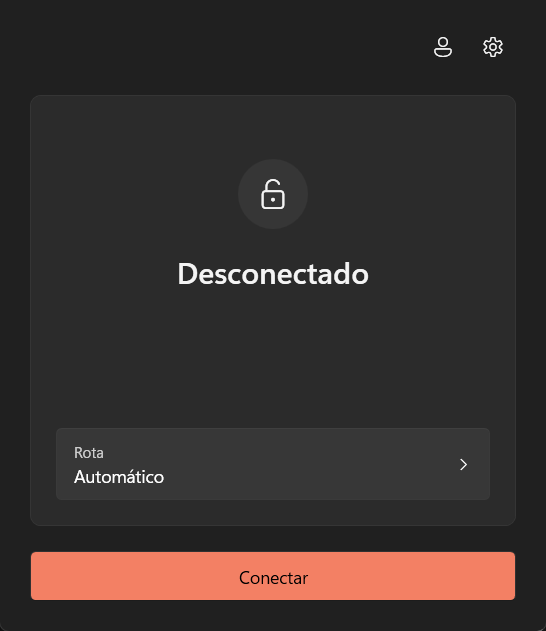
- Clicking Connect closes Discord, brings up the tunnel for it alone and opens Discord again.
- Clicking Disconnect closes Discord, drops the tunnel and opens Discord again on the normal route.
- Nothing else on the PC enters the tunnel, not the browser or your games.
In a call? Leave it first: connecting closes Discord.
What it needs
- Windows
- x64, built for Windows 11.
- Administrator
- Windows asks for administrator rights to connect and disconnect. Opening the app does not.
- Account
- Sign in with your Proton account (the tunnel ends at a Proton server) or import a WireGuard
.confunder Settings, Advanced. - WireSock SDK
-
Required. Brisa does not connect without it.
Version 3.4.8.1, official x64 installer.
Download WireSock SDK 3.4.8.1It is not the WireSock Secure Connect app, which is a different product.
Install
- Download and run
Brisa-win-Setup.exe. - Install the WireSock SDK 3.4.8.1. Brisa does not connect without it. On the first connection, if it is not installed yet, Brisa downloads it and opens the official installer.
- Open Brisa from the Start menu, sign in with your Proton account or import your
.conf, and click Connect.
Download for Windows
The setup is not code-signed yet, so SmartScreen may warn about an unknown publisher. If the file came from the repository's Releases, choose More info, then Run anyway.
You can also use the portable ZIP or the PowerShell installer, which checks the hash before it runs.